Frame Outset
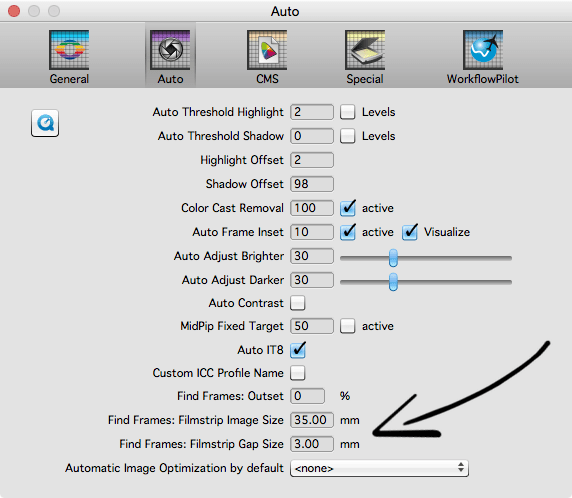
Open the SilverFast preferences and switch to the “Auto” tab. Enter a value of 5% into the “Find Frames: Outset” text field and a safety addition of this size will be added to all frames when starting the scanning process.
Specify Custom Frame Size
Different cameras expose different wide film areas, and not every camera transports the film equidistant. Therefore, the actual image size on slides and filmstrips, and also the distance between individual images on filmstrips can slightly vary from film to film. For example, the image width can sometimes be 34.8mm instead of exactly 35mm. The new IFF+Engine takes this into account and detects even the smallest differences in image size.
Additionally, you can force a custom image size. To do so, enter the desired image frame width for your filmstrips in mm in the “Find Frames: Filmstrip Image Size” field. If you also need a specific fixed distance between individual images, use the setting “Find Frames: Filmstrip Gap Size”.
Please also take notice of our video, which examines these special additional options more closely.
High Resolution Preview Scan
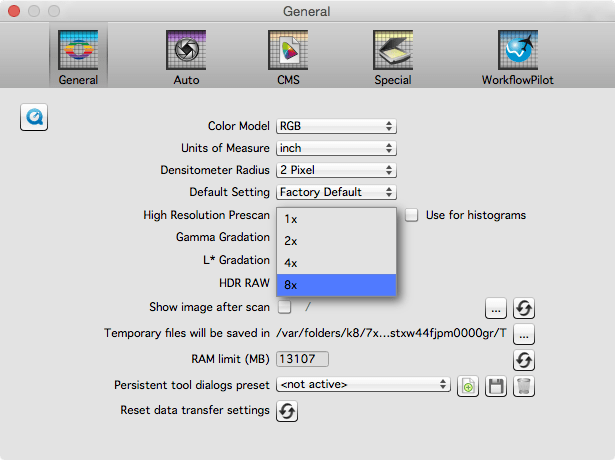
The more image data available to the algorithm for frame detection, the more precisely the image frames can be found. To maximize the performance of the IFF+Engine, in the SilverFast preferences’ “General” tab, select the setting “8x” from the „High Resolution Prescan” drop-down menu.


 16bit Histogram
 AACO
AACO ACR
ACR Auto IT8 Calibration
 Batch Scanning
 Clone-Tool
 ColorServer
 Descreening
 Expert Mode
 ExpressScan
 Focus Control
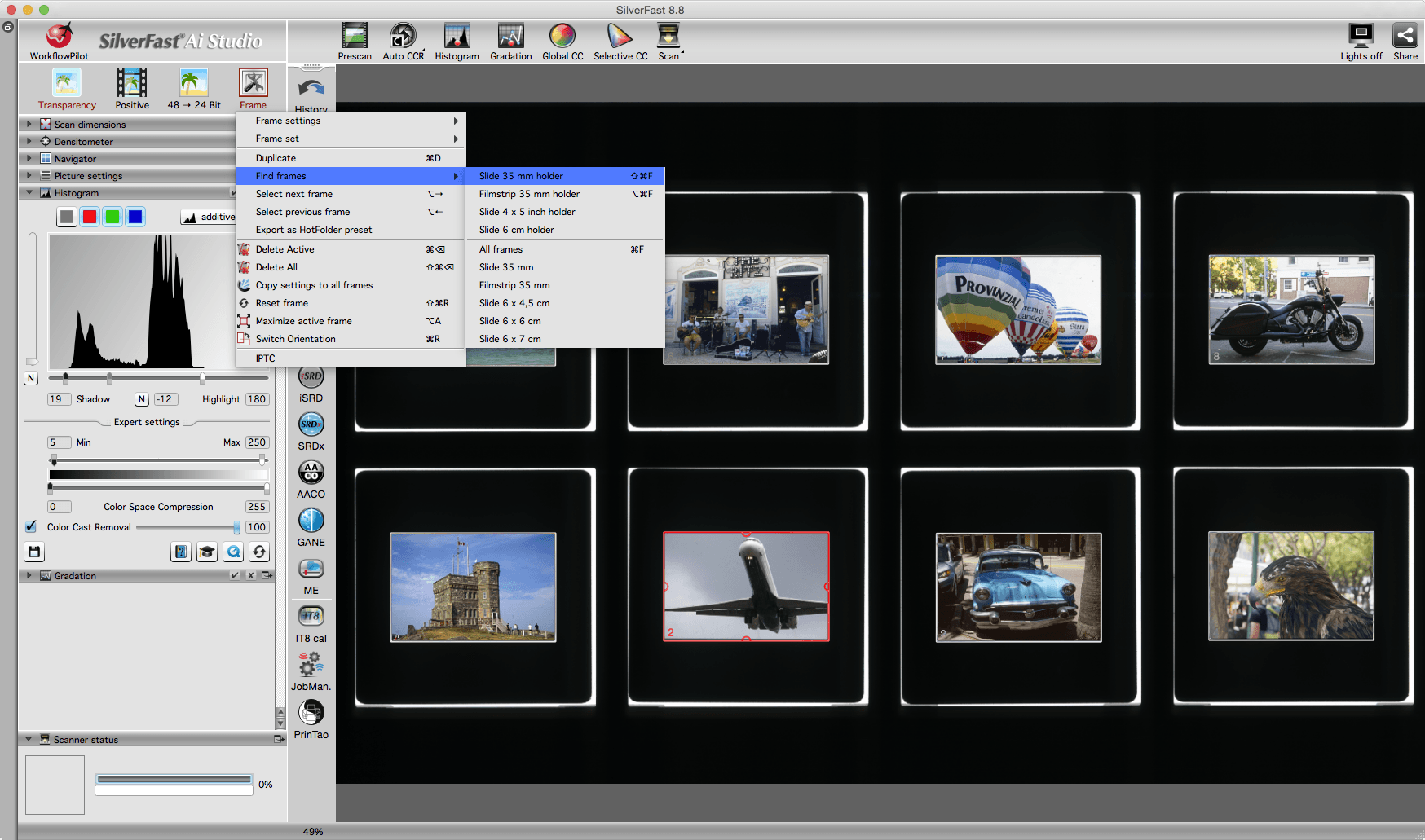
 Frame Detection
 GANE
GANE GCC
GCC HDRiRAW
 Help Videos
 Image Automatic
 Image to Web
 iSRD
iSRD JobManager
 JobMonitor
 Kodachrome Mode
 LAB Format
 Multi-Exposure
 Multi-Tasking
 Multiple Densitometer
 NegaFix
 Neutral Pipette
 Preview Concept
 PrinTao
 Printer Calibration
 SAC
SAC SC2G
SC2G SCC
SCC SRDx
SRDx USM
USM VLT
VLT WorkflowPilot