Quick Links


Support-Werkzeug Kontakt

Sollte SilverFast sich nicht mehr öffnen lassen, können Sie uns über das folgende Support-Werkzeug kontaktieren. Dieses hat den Vorteil, dass uns automatisch Ihre SilverFast Supportdateien übermittelt werden.

Support-Werkzeug für OS X/macOS

Bitte führen Sie einen Doppelklick auf die DMG Datei aus, um diese zu mounten. Führen Sie anschließend das darin enthaltene "SilverFast Support-Tool" aus.

Support-Werkzeug für Windows

Bitte extrahieren Sie die Daten aus dem ZIP-Archiv. Führen Sie anschließend das darin enthaltene "SilverFast Support-Tool" aus.
 
Support-Assistent (FAQ)
Creating and changing scan frames.

SymptomSymptom:
How do I manage my scan frames and settings?

ProblemProblem:
Each image requires it's own scan frame.
Each scan frame has it's own unique settings.

LösungLösung:
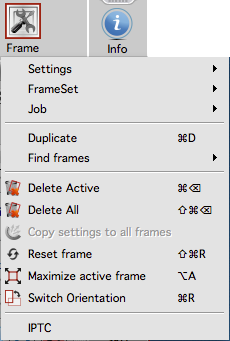
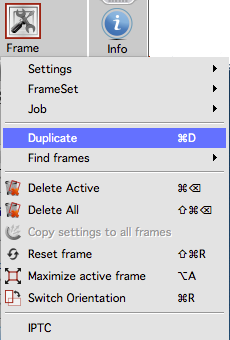
SilverFast allows you to manage your frames through the frame menu.


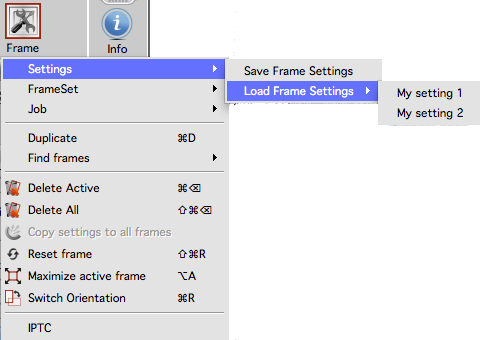
It allows you to save and load individual fame settings. (HDR/Ai Studio only)
You can delete saved frame settings by holding the alt-key/option-key, then opening the menu and clicking on the list entry you want to delete.
Saved frame settings can also be used as default presets for newly created frames.


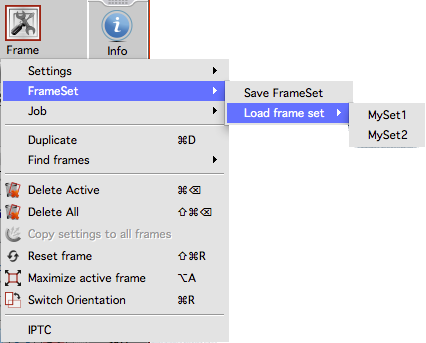
You can also save and load FrameSet. (HDR/Ai Studio only)
A FrameSet saves/loads the size and position of all current frames.
But not the settings.
You can delete saved FrameSets by holding the alt-key/option-key, then opening the menu and clicking on the list entry you want to delete.


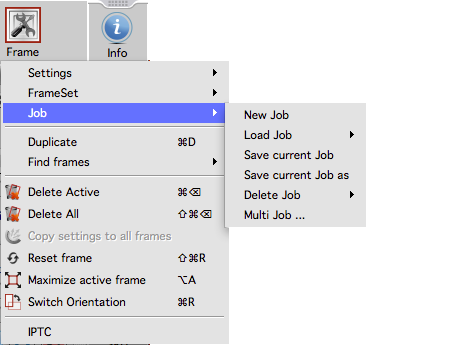
The menu also allows you to manage JobManager jobs. (HDR/Ai Studio only)


Duplicating a frame will produce an exact copy.
It will even incorporate the same space as the original frame.
The new frame can be dragged to another image.
Or it can be used to make two scans of the same image using different settings but the same position and size.


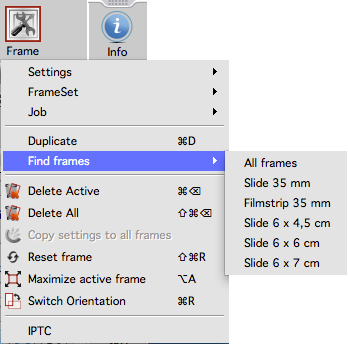
The Find frames option allows you to automatically detect frames in the scan area.
There are dedicated detection presets for various formats and holders.
Which options are available depends on your scanner and wether reflective or transparency mode is active. 


The menu also allows you to delete active or all frames.
Deleting the last frame will create a new one using the selected default preset.
You can also reset selected frames to the default values.
You can maximize the frame to the available scan area.
And you can exchange the side to side ratio using the "Switch Orientation" selection.

The menu also gives access to the IPTC data. (HDR/Ai Studio only

Mein Problem ist nun gelöst. Mein Problem ist noch nicht gelöst.
Start Zurück