Quick Links


Support Tool Contact

In case your SilverFast application does not start anymore please download the following tool to contact us. This has the advantage, that it will provide us with your SilverFast support files.

Support Tool for OS X / macOS

Please double-click the DMG to mount it. Execute the included SilverFast Support Tool.

Support Tool for Windows

Please double-click the ZIP archive and extract its content. Start the SilverFast Support Tool.

Rechercher

Keywords:
 
minus Support-SF8 SilverFast 8
minus 10_usage Questions sur l'utilisation
prescanThe Prescan.
The Prescan obtains a fast scan image from the scanner which allows you to make all your settings.

This is the first step to a scan in SilverFast SE, SEPlus and Ai Studio.
 

vltThe VLT.
The Virtual Light Table is used to open images for processing in SilverFast HDR (Studio)

It allows you to preview your images prior to opening them.
Simply select the images you want to process and drag them onto the JobManager.
To do so mark the images.
Then click on one of them and wait for the mouse to turn into a hand symbol.
Now drag the images onto the JobManager icon.

Holding the Shift-key allows you to use the standard file explorer.
 

autoadjustSelect the image auto adjustment you want to use.
SilverFast offers various automatic image adjustment methods.
Using them will automatically set the highlights, shadows and gradation to suit your individual image content.
This is an important step and necessary for all images.
 

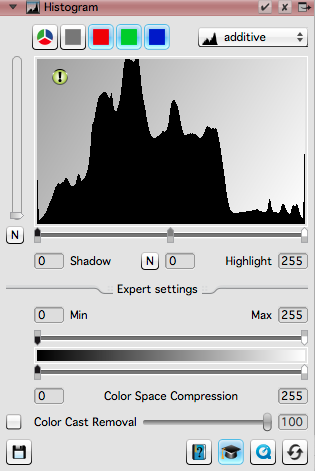
histogramHistogram adjustments.
The histogram allows you to manually adjust the highlights, shadows and midtones.
If necessary it also allows you to set the color space compression and adjust the color cast removal strength (CCR).

histogrammenu
Depending on your version of SilverFast you can select various ways to display the histogram.


The main area of the histogram shows the distribution of the color values throughout the image.


Below it you can drag the markers for the shadows, mid-tones and highlights.


In the expert settings you can select the colorspace compression


and set the color cast removal(CCR) value


button_movie
more movies
 

gradationGradation adjustment.
The gradation allows you to individually adjust the brightness values.

The Midtone slider allows you to make your image appear brighter without "burning out" any colors. Which is why the slider has certain limits.

In addition you can adjust the contrast values.
 

gccHow do I adjust the global color values using the Global CC?
The Global Color Correction can be helpful for:
-remove color casts.
-adjust color perception.
-adjust global color temperature.
 

sccHow to adjust individual colours.
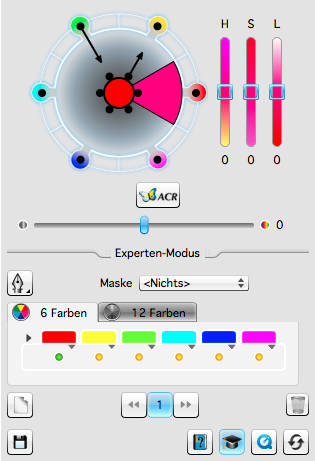
The Selective Color Correction (Selective CC) allows you to select individual color values and adjust them.
scc2
For greyscale mode this tool is replaced by the Selective Color to Grey (SC2G) tool.


Simply click on the center circle and the pick a color from your image.
Now you can edit the colour value by dragging the small black circles or by changing the HSL(Hue, Saturation, Luminescence) values.


The Expert mode allows you to limit the changes by adding a mask.

You change between 6 colour and 12 colour editing mode.
And use presets for the individual color channels.

In SilverFast Ai Studio you can use up to four individual layers for masks with individual settings.


scanScan / Process
This is the final step.
After pre-scanning/loading and setting up your image it starts the final scan (SilverFast SE, SE Plus and Ai Studio) or processing ( SilverFast HDR and HDR Studio) of the image.
It also allows you to switch between batch and single mode.
How to switch to batch mode: button_movie
more movies
 
Précédent