Quick Links


Support-Werkzeug Kontakt

Sollte SilverFast sich nicht mehr öffnen lassen, können Sie uns über das folgende Support-Werkzeug kontaktieren. Dieses hat den Vorteil, dass uns automatisch Ihre SilverFast Supportdateien übermittelt werden.

Support-Werkzeug für OS X/macOS

Bitte führen Sie einen Doppelklick auf die DMG Datei aus, um diese zu mounten. Führen Sie anschließend das darin enthaltene "SilverFast Support-Tool" aus.

Support-Werkzeug für Windows

Bitte extrahieren Sie die Daten aus dem ZIP-Archiv. Führen Sie anschließend das darin enthaltene "SilverFast Support-Tool" aus.
 
Support-Assistent (FAQ)
Un-Sharpening Mask (USM)

SymptomSymptom:
When and how do I use the un-sharpening mask (USM)?

LösungLösung:
The USM allows you to optimize the sharpness of your image.

It can be used to remove device or motive sided fuzziness.
It can be used together with the GANE function when  removing grain.

The available options depend on your SilverFast version.

Activate the 1:1 preview so you can better see these changes.

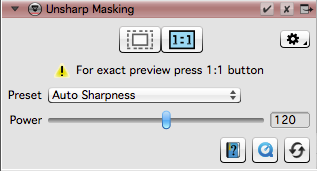
SilverFast SE

In SilverFast SE you can control the USM strength.
The pull-down menu allows you to quickly select certain presets.

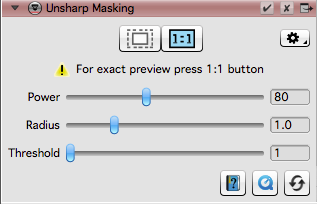
SilverFast SE Plus

In SilverFast SE Plus you can control the USM strength.
Additionally you can change the radius.
It controls how far from a pixel the unsharpening will work.
The threshold controls which pixels will be included in the correction.

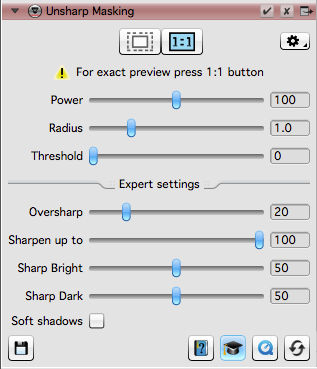
SilverFast Ai Studio

In SilverFast Ai Studio you can control the USM strength.
And you can change the radius.
It controls how far from a pixel the unsharpening will work.
The threshold controls which pixels will be included in the correction.
Additionally you can further influence the tool's behavior through the expert settings.
It enables you to allow over-sharpening an counter the sharpening by limiting the maximum values.
Here you can also set how much the USM will effect dark and bright values.

Mein Problem ist nun gelöst. Mein Problem ist noch nicht gelöst.
Start Zurück