 English [change]
 English
 Deutsch
 Français
 Italiano
 日本語
日本語 Español
 Português
 Russian
 Chinese (Simp.)
 Czech
Czech Polish (Store only)
 Read testimonials and reviews here ...
How to select and apply SilverFast Multi-Sampling?
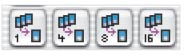
You can activate the SilverFast Multi-Sampling with the vertical toolbar. Just click on the Multi-Sampling icon and choose the number of scans you want your scanner to do. You would achieve the highest quality with factor 16, but for moderate results choose a factor of 4 or 8.
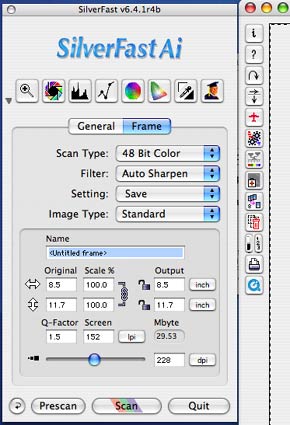
Be advised that with a larger number of samples the time until you have the final scan increases. This will, of course, also vary with the selected scanner resolution.
It is recommended to use the Job Manager if you want to do several scans. This way you do not have to wait for each scan to finish.
Multi-Sampling and high-bit scans?
Multi-Sampling can be applied with any kind of scan type. You can do Multi-Sampling scans in 24-bit mode positive or negative (using NegaFix!), or if you want to work with large high-bit 48-bit TIFF files and Silver-Fast HDR, you can also sample into 48-bit HDR format (and the new 64bit HDRi format).
Note: Multi-Sampling is available in every SilverFast SE Plus, SilverFast Ai and SilverFast Ai Studio version 6.6.1r1b or later.


