Webcams
Berichte über SilverFast
von Profis
von Anwendern
SilverFast in Action
Online Berichte
Internationale Printmedien
aus dem IT-Enquirer
Reviews von Vincent Oliver (photo-i)
PDF Archiv
aus dem IT-Enquirer (Englisch)
Calibrating Any Monitor With basICColor Display 4.x
SilverFast DC Pro Studio 6.5: ColorServer Hot Folder Speeds Up Image Processing
When and Why To Apply Multi-Exposure in SilverFast Ai Studio 6.5
SilverFast Ai Studio 6.5: Multi-Exposure Brings Out The Details
Removing Dust and Scratches with SilverFast SRD
SilverFast 6 Ai Review
Fitting SilverFast Ai Studio in a DTP workflow
Calibrating your digital camera with SilverFast DC Pro
Using SilverFast to Correct Scanned Photographs
Color Management for Scanned Images
SilverFast DC Pro Studio: A Better Aperture for Photoshop Users
SilverFast DC Pro Studio vs. Aperture
SilverFast Noise reduction with GANE
SilverFast Global Colour Correction Tutorial
SilverFast for the Heidelberg Topaz, NexScan, and Tango1
SilverFast supports Heidelberg High-End Scanners
How to Create Contrast-rich Grayscale Images from Color Originals
SilverFast Job Manager Batch Scanning
SilverFast's Multi-Sampling breathes new Life into Scanners!
SilverFast scanning software for Heidelberg
SilverFast Plug and Play CMYK
SilverFast 6.x PrinTao: Casual DTP Delight
Why do you need SilverFast PrinTao?
Profiling a scanner with SilverFast
Scanning directly to print with PrinTao
Selective Colour Correction with SilverFast
SilverFast Noise reduction with GANE
SilverFast comes with a Grain and Noise Reduction algorithm to reduce noise and graininess that are inherent in some scanners. GANE stands for Grain and Noise Elimination.

Applying GANE is easy: complete a clean scan, perform all your standard adjustments to the pre-scanned image, and finally run GANE. You access GANE from the Scan Control window, where it sits under the Filter option.
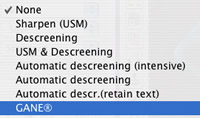
When the GANE window opens, you can click on a portion of the image which you would like to use for determining GANE strength. The control window allows you to set a zoom factor. It is a good idea to set this factor to 2x or higher, in order to see the results of your adjustments better.

GANE has simple settings in its default configuration: you can only set it from low to high. But the window also has the Expert button and when you click on that one, you can set the intensity, threshold, and radius of the GANE effect. These adjustments behave much like unsharp mask controls, but the results are are exactly the opposite.

The intensity setting will control the amount of smoothing that occurs. The threshold setting controls which portions of the image will be affected, and the radius the size of the area to be affected.

GANE does soften your image a bit. Therefore, after applying GANE, you might want to apply some unsharp masking.

GANE is available in many SilverFast versions, including the Studio DC Pro version.

(Source: IT-Enquirer)
Bookmark: add to Google Bookmark add to newsgator add to digg add to Netscape Bookmark del.icio.us Bookmark MISTER WONG Bookmark yigg.de Bookmark Slashdot
Home | Firma | Kontakt | Associates | Sitemap | Impressum | Awards | Linkpartner | International | Flight